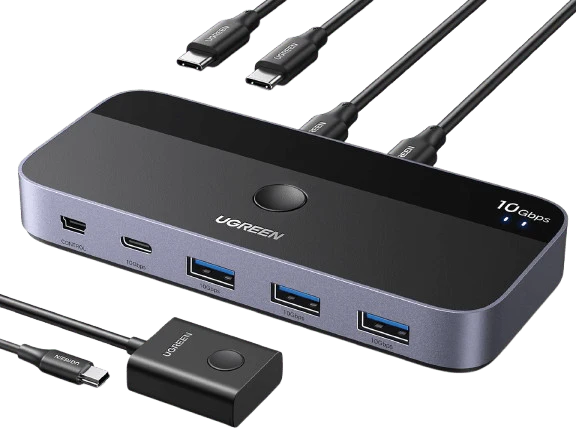
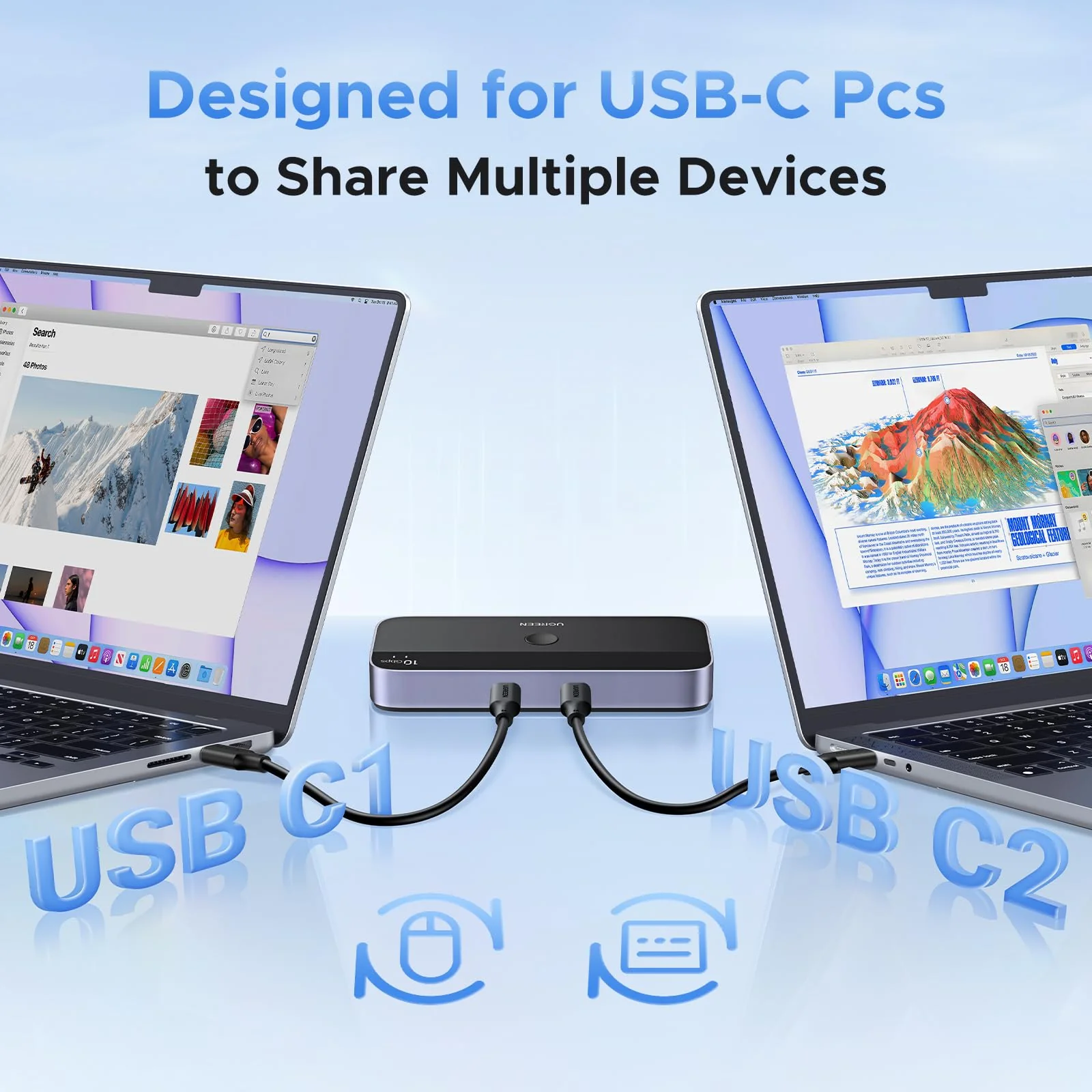
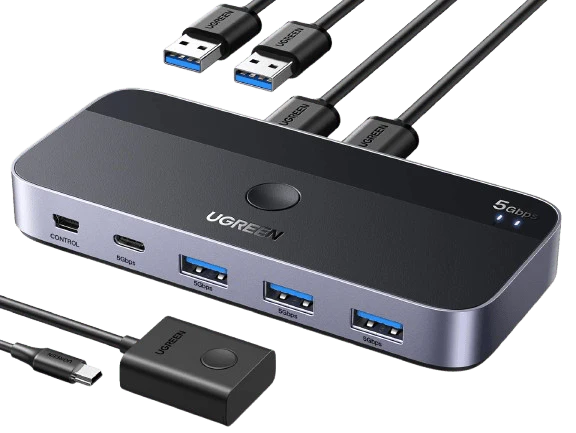
Only need to use a USB-A to C data cable (best within 1.2ft/0.8m) to connect this switch and computer.
Input Tip:
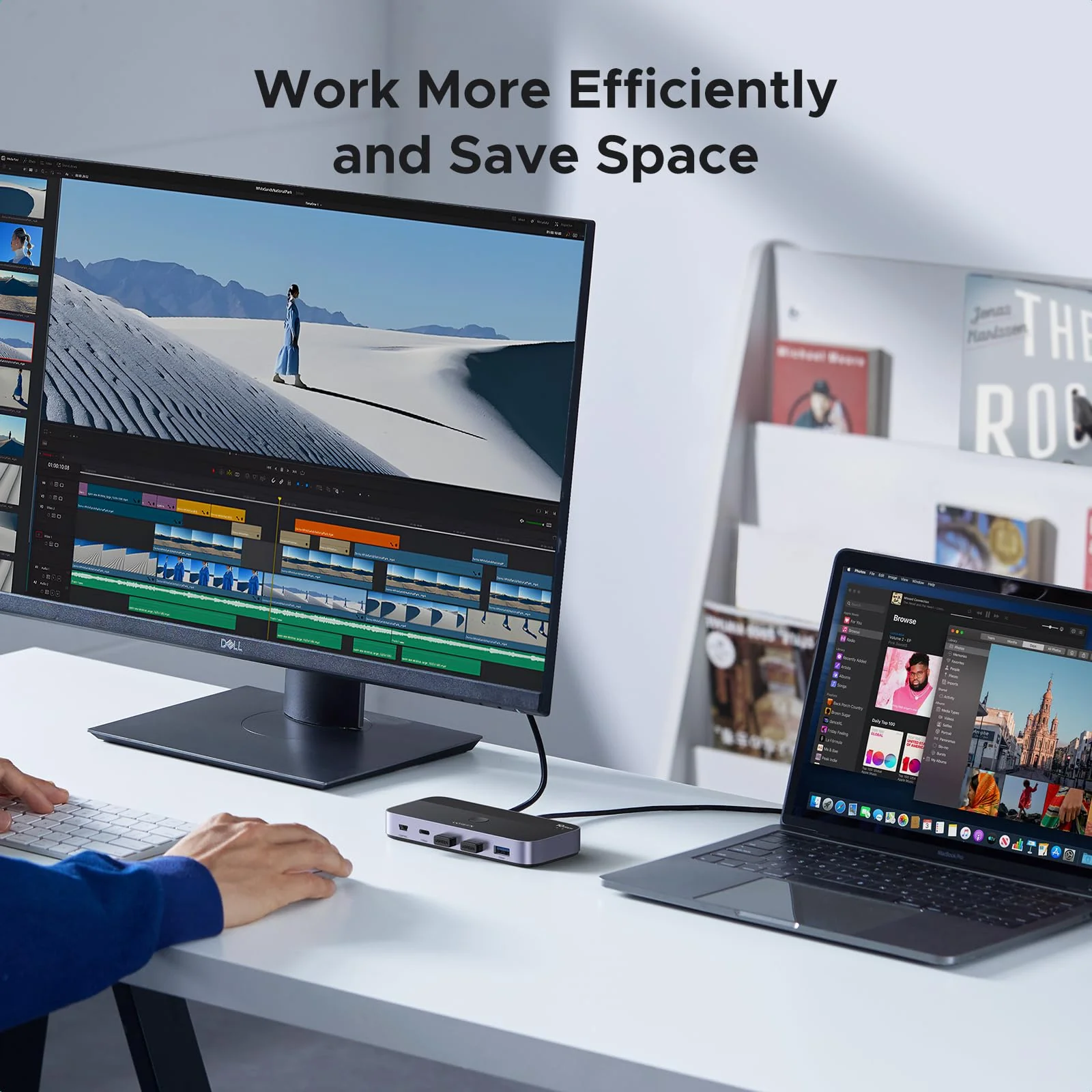
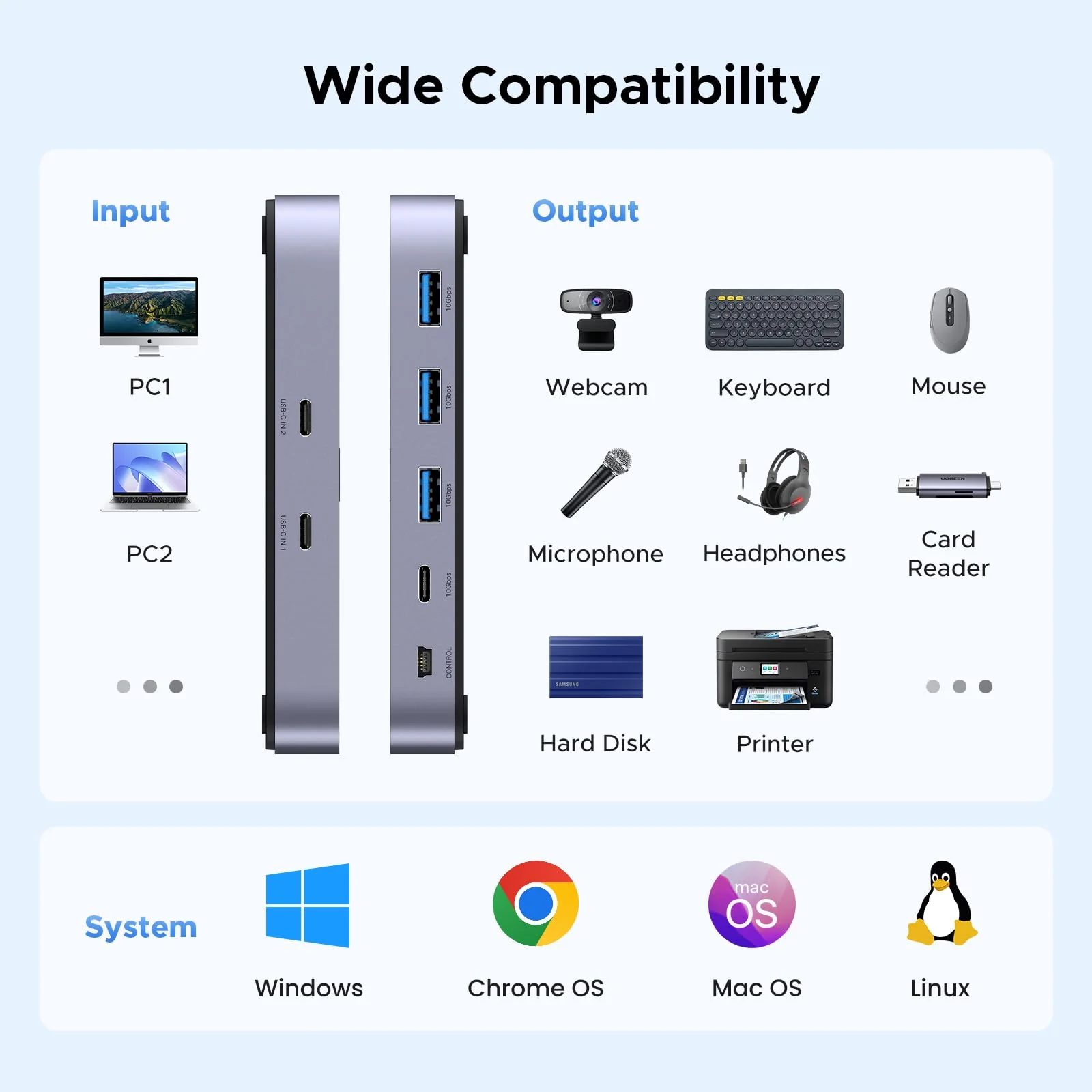
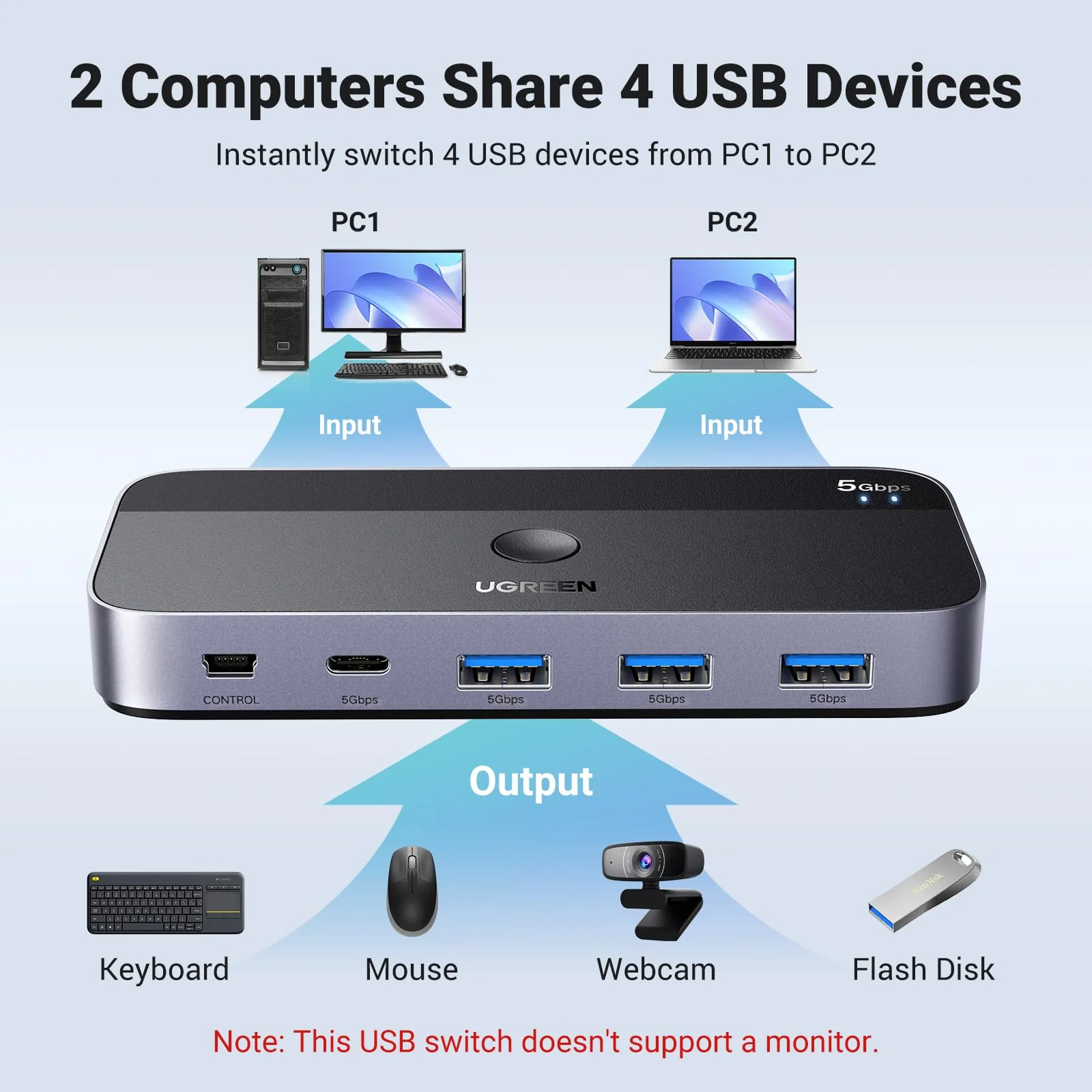
This is a USB C switch not a KVM switch and doesn't support a monitor; the USB-C input does not support video and there is no HDMI input.
This device is designed for data transmission and does not support video transmission.
Output Tip:
The USB port at the output is only used for data transfer and does not support power supply for a laptop/USB devices or video transmission.
Not suggested to connect wireless devices to USB 3.0 switch due to 2.4Ghz co-channel interference (industry problem).
If your wireless network is affected, please set your router frequency from 2.4GHz to 5GHz.
About Data Cable Length:
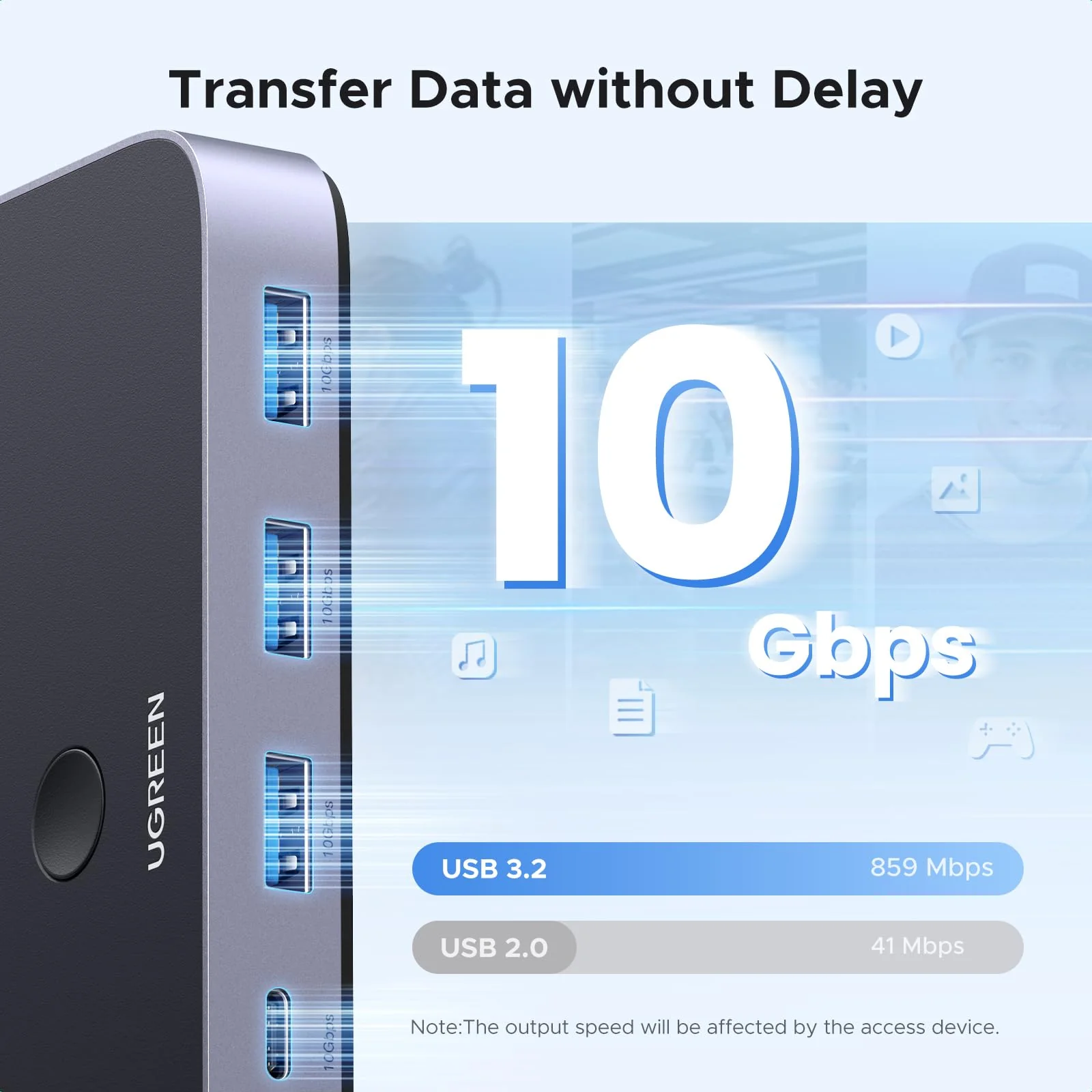
Using a cable longer than 0.8M may cause a drop in transmission speed.
About Power Supply:
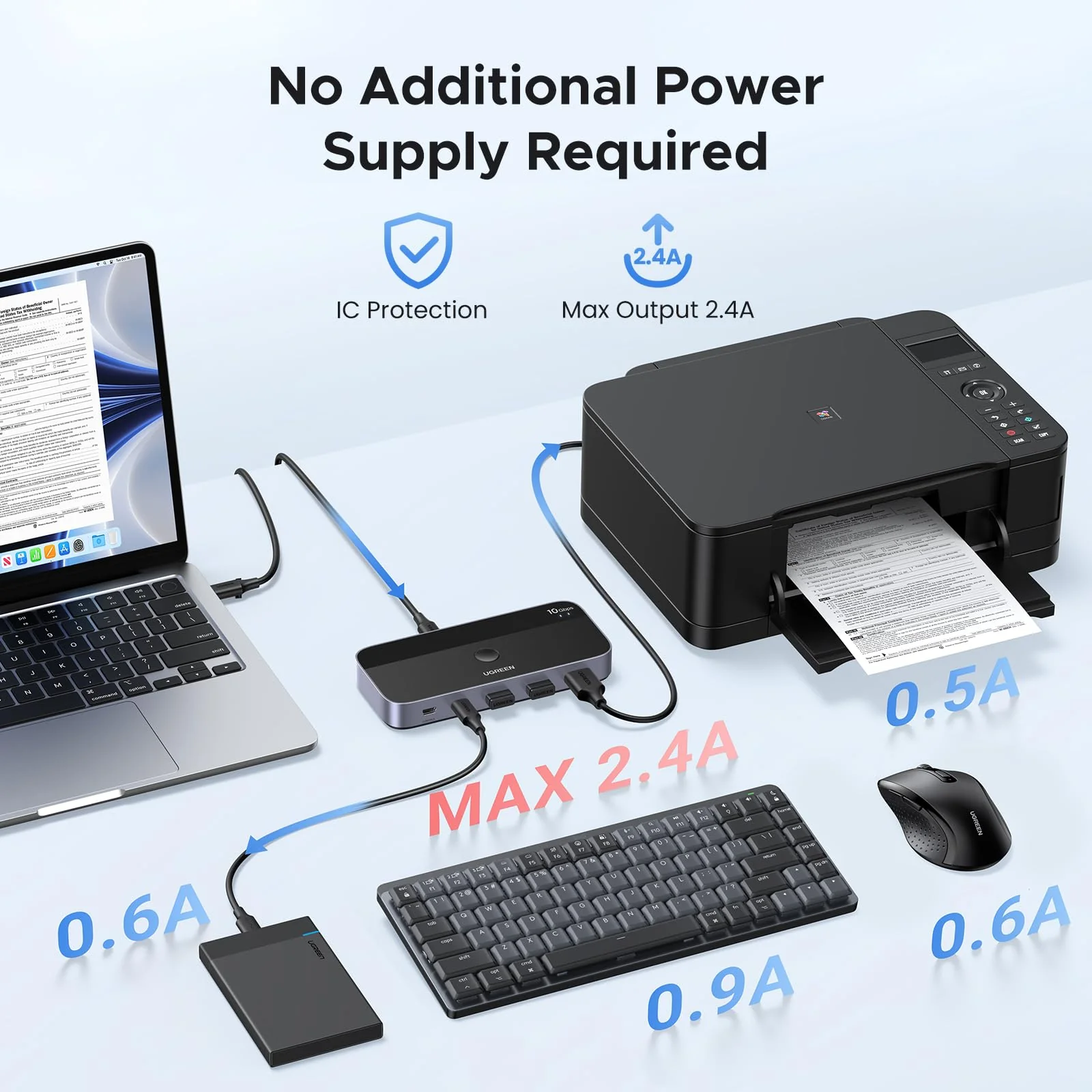
When connected to a USB-C laptop port, this device can output a Max 2.4A, enough power to run four 3.5" HDD/SSD or two 2.5" 1TB HDD/SSD at once.
When connected to a USB-A laptop port, please note that due to the limitation of the USB-A port output current, the switch only can output 5V2A.
Other:
Connect to USB-C IN1 and USB-C IN2 simultaneously, PC 1 will be given priority to share USB devices.
Package Content:
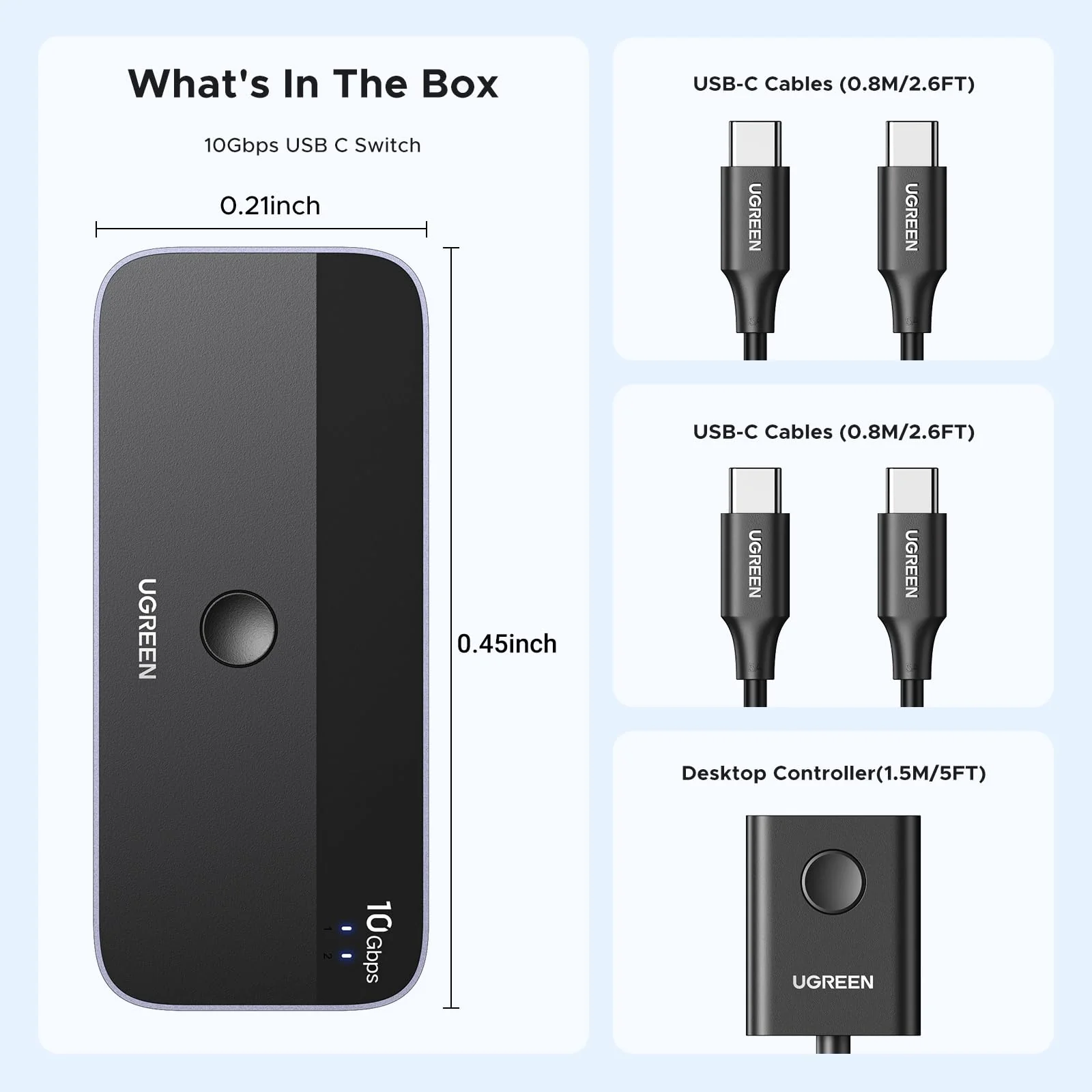
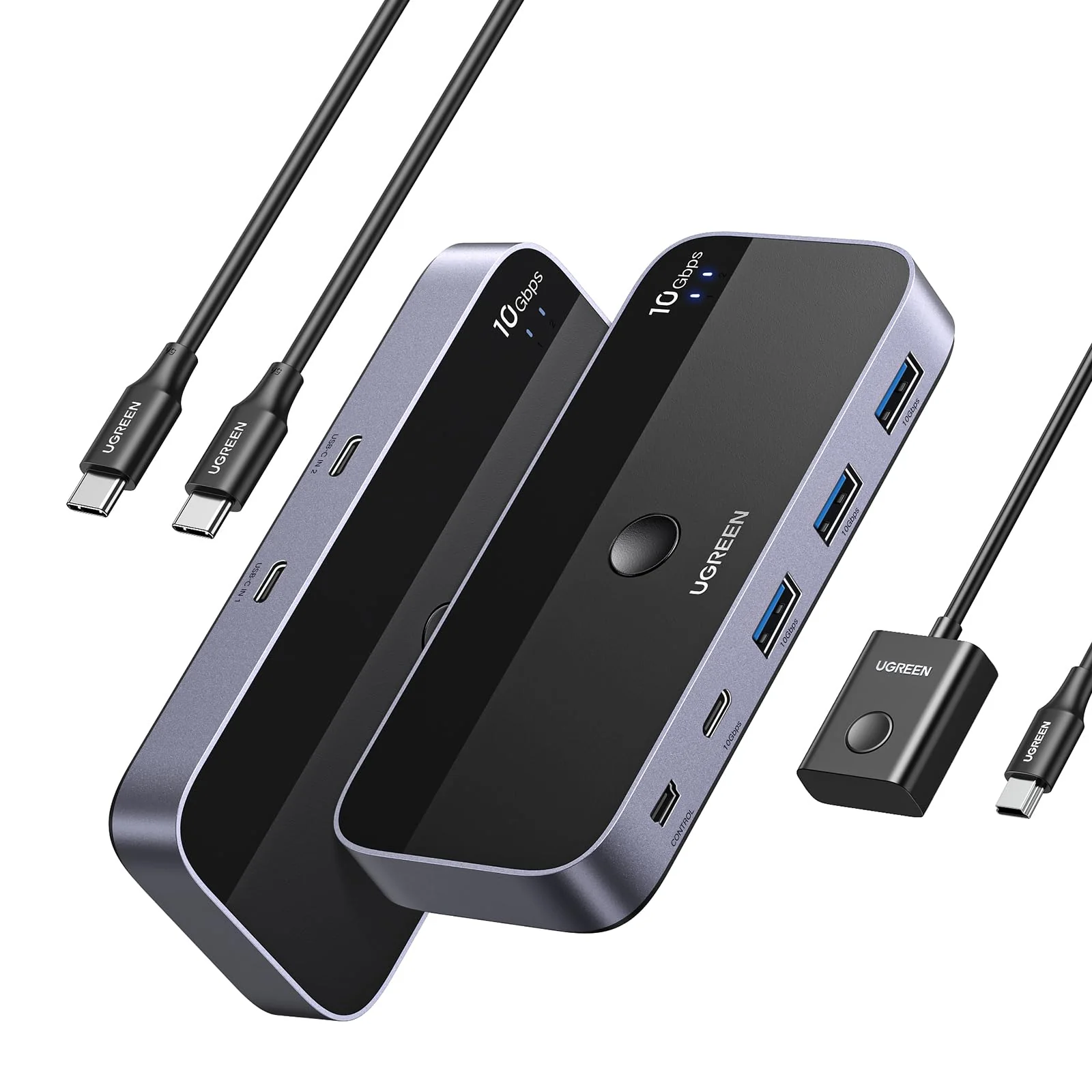
USB 3.2 Switch * 1 (4.8 x 2.1 x 0.7 Inches); USB C to C Cable * 2 (2.6FT/0.8M); Remote Control *1 (5FT/1.5M)
About Mac:
For Mac OS 13.3 and above, please allow usb devices to work by doing this setting: Use the mac's own touchpad to choose Apple menu > System Settings > Privacy & Security >Click the pop-up menu next to “Allow accessories to connect“ > Choose "Always".
About PC is sleeping:
If the USB device is disconnected after the PC is awakened from sleep mode, it may be caused by the energy saving mode. Please turn off energy saving and try again.
[Windows] 1. Control Panel > System and Security > Power Options > Select the "Change Plan Setting" option next to your current power plan > Select "Change advanced power settings"> "Power Options"> "Expand the USB Settings section and double-click USB selective suspend setting."> Select "disable".
2. Device Manager > Universal Serial Bus controllers > right-click all hubs that have been detected > select "Properties"> Power Management > deselect "Allow the computer to turn off this device to save power."
[Mac] Please follow the below steps to disable the Mac into auto-sleep to see if the issue can be solved: System Performace > Battery > Disable "Prevent computer from sleeping automatically when the display is off", and disable "Enable Power Nap while plugged into a power adapter".
$21.00
Original: $69.99
-70%
UGREEN USBC Switch - 2-Port, 4 x USB 3.2, 10Gbps Data—
Only need to use a USB-A to C data cable (best within 1.2ft/0.8m) to connect this switch and computer.
Input Tip:
This is a USB C switch not a KVM switch and doesn't support a monitor; the USB-C input does not support video and there is no HDMI input.
This device is designed for data transmission and does not support video transmission.
Output Tip:
The USB port at the output is only used for data transfer and does not support power supply for a laptop/USB devices or video transmission.
Not suggested to connect wireless devices to USB 3.0 switch due to 2.4Ghz co-channel interference (industry problem).
If your wireless network is affected, please set your router frequency from 2.4GHz to 5GHz.
About Data Cable Length:
Using a cable longer than 0.8M may cause a drop in transmission speed.
About Power Supply:
When connected to a USB-C laptop port, this device can output a Max 2.4A, enough power to run four 3.5" HDD/SSD or two 2.5" 1TB HDD/SSD at once.
When connected to a USB-A laptop port, please note that due to the limitation of the USB-A port output current, the switch only can output 5V2A.
Other:
Connect to USB-C IN1 and USB-C IN2 simultaneously, PC 1 will be given priority to share USB devices.
Package Content:
USB 3.2 Switch * 1 (4.8 x 2.1 x 0.7 Inches); USB C to C Cable * 2 (2.6FT/0.8M); Remote Control *1 (5FT/1.5M)
About Mac:
For Mac OS 13.3 and above, please allow usb devices to work by doing this setting: Use the mac's own touchpad to choose Apple menu > System Settings > Privacy & Security >Click the pop-up menu next to “Allow accessories to connect“ > Choose "Always".
About PC is sleeping:
If the USB device is disconnected after the PC is awakened from sleep mode, it may be caused by the energy saving mode. Please turn off energy saving and try again.
[Windows] 1. Control Panel > System and Security > Power Options > Select the "Change Plan Setting" option next to your current power plan > Select "Change advanced power settings"> "Power Options"> "Expand the USB Settings section and double-click USB selective suspend setting."> Select "disable".
2. Device Manager > Universal Serial Bus controllers > right-click all hubs that have been detected > select "Properties"> Power Management > deselect "Allow the computer to turn off this device to save power."
[Mac] Please follow the below steps to disable the Mac into auto-sleep to see if the issue can be solved: System Performace > Battery > Disable "Prevent computer from sleeping automatically when the display is off", and disable "Enable Power Nap while plugged into a power adapter".
$21.00
Original: $69.99
-70%
UGREEN USBC Switch - 2-Port, 4 x USB 3.2, 10Gbps Data—
$69.99
$21.00
You may also like
-70%
UGREEN Magnetic Wireless Car Charger Mount
$34.99
$10.50
-70%
UGREEN USB 3.0 Switch 2 Computers Sharing USB C & A Devices
$45.99
$13.80
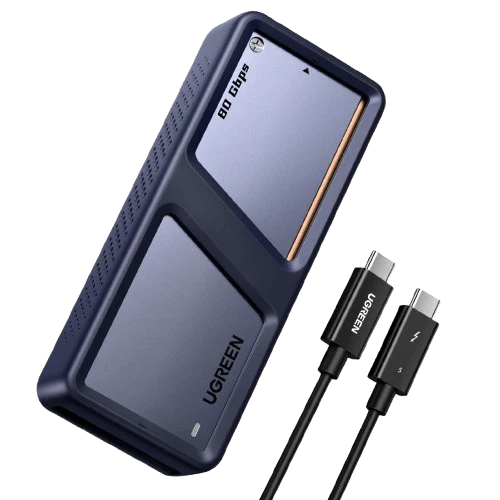
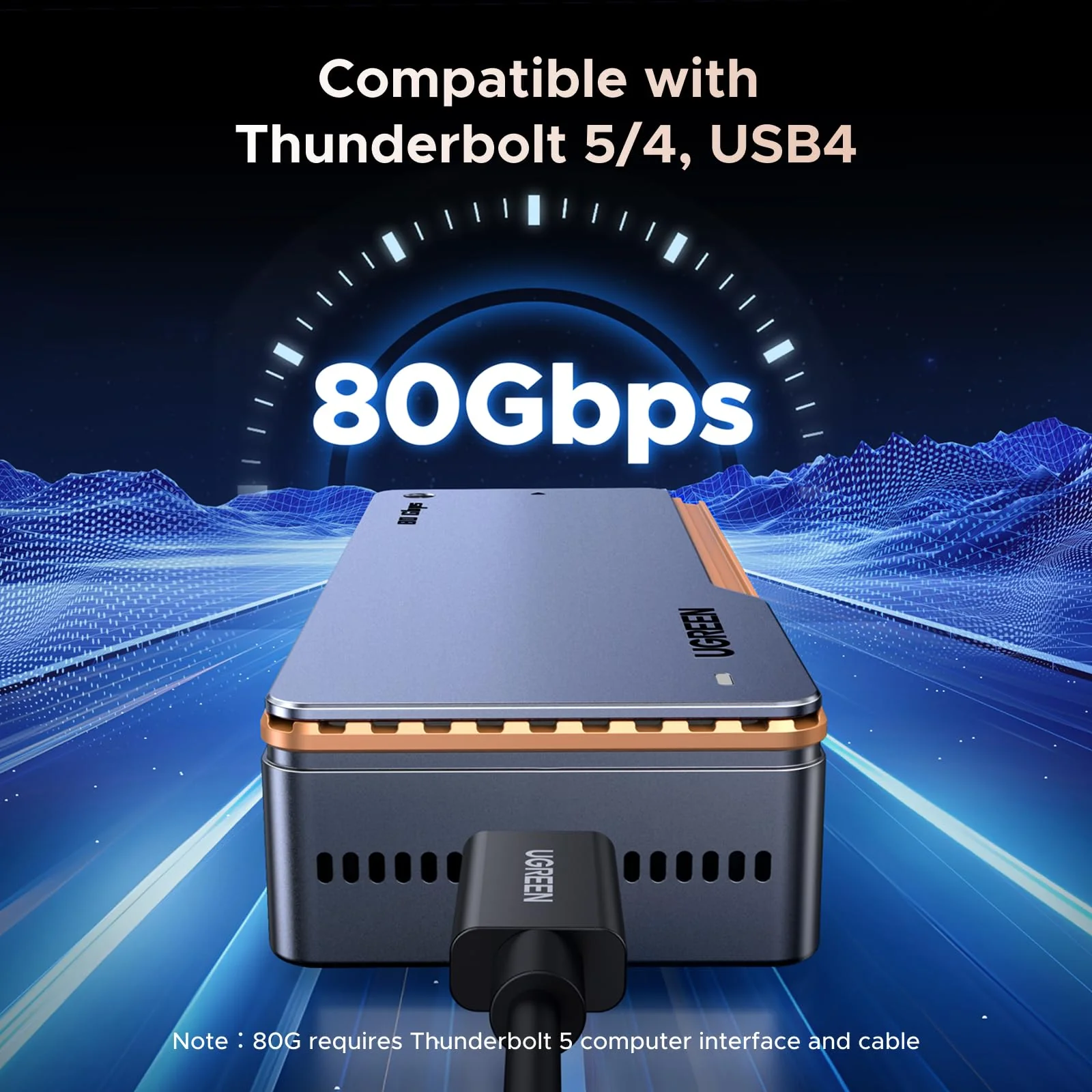
UGREEN NVMe SSD Enclosure
$299.99
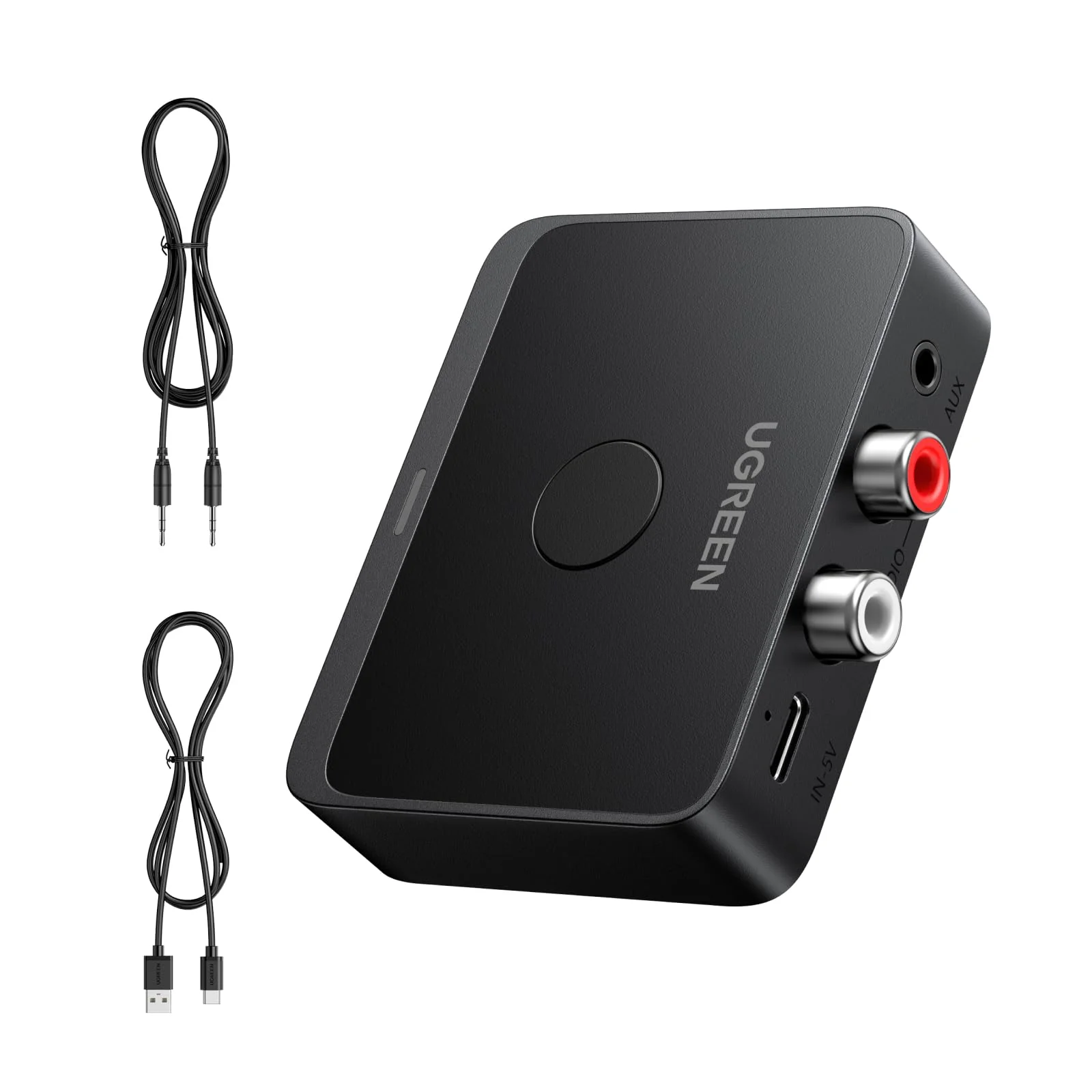
UGREEN Bluetooth 60 Audio Receiver with LDAC
$29.99
-70%
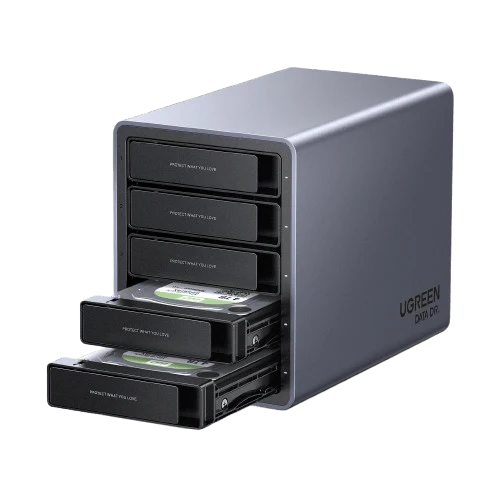
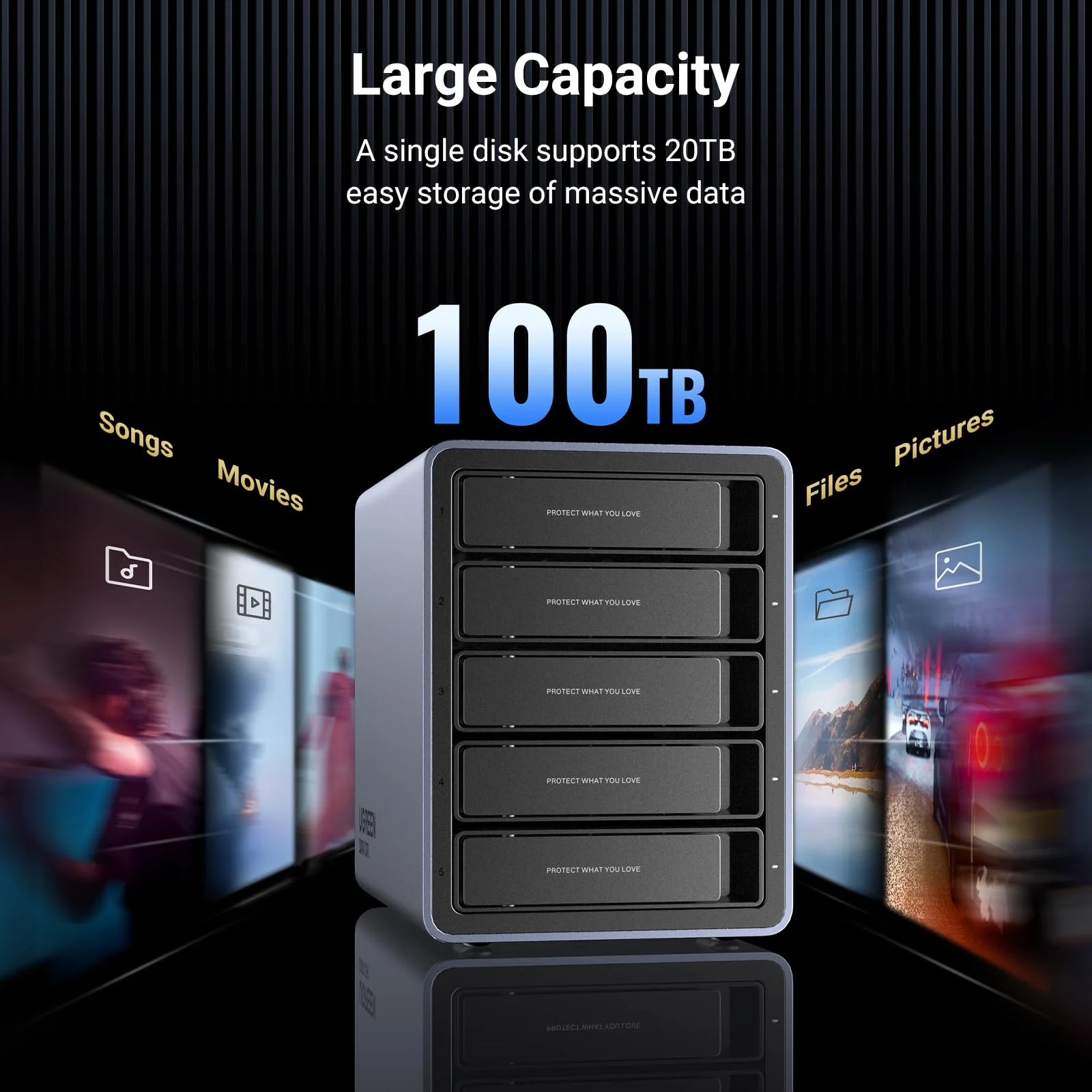
UGREEN 5 Bay USB C RAID Hard Drive Enclosure 100TB
$229.99
$69.00
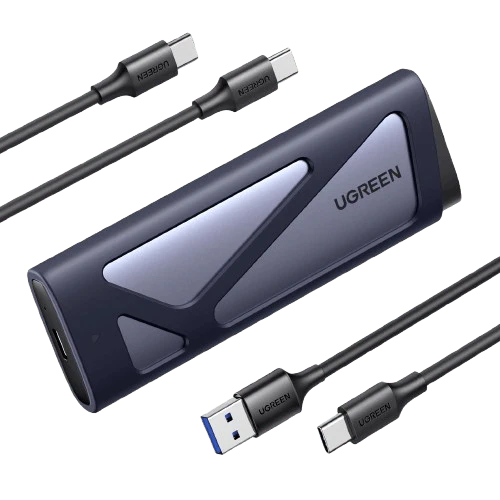
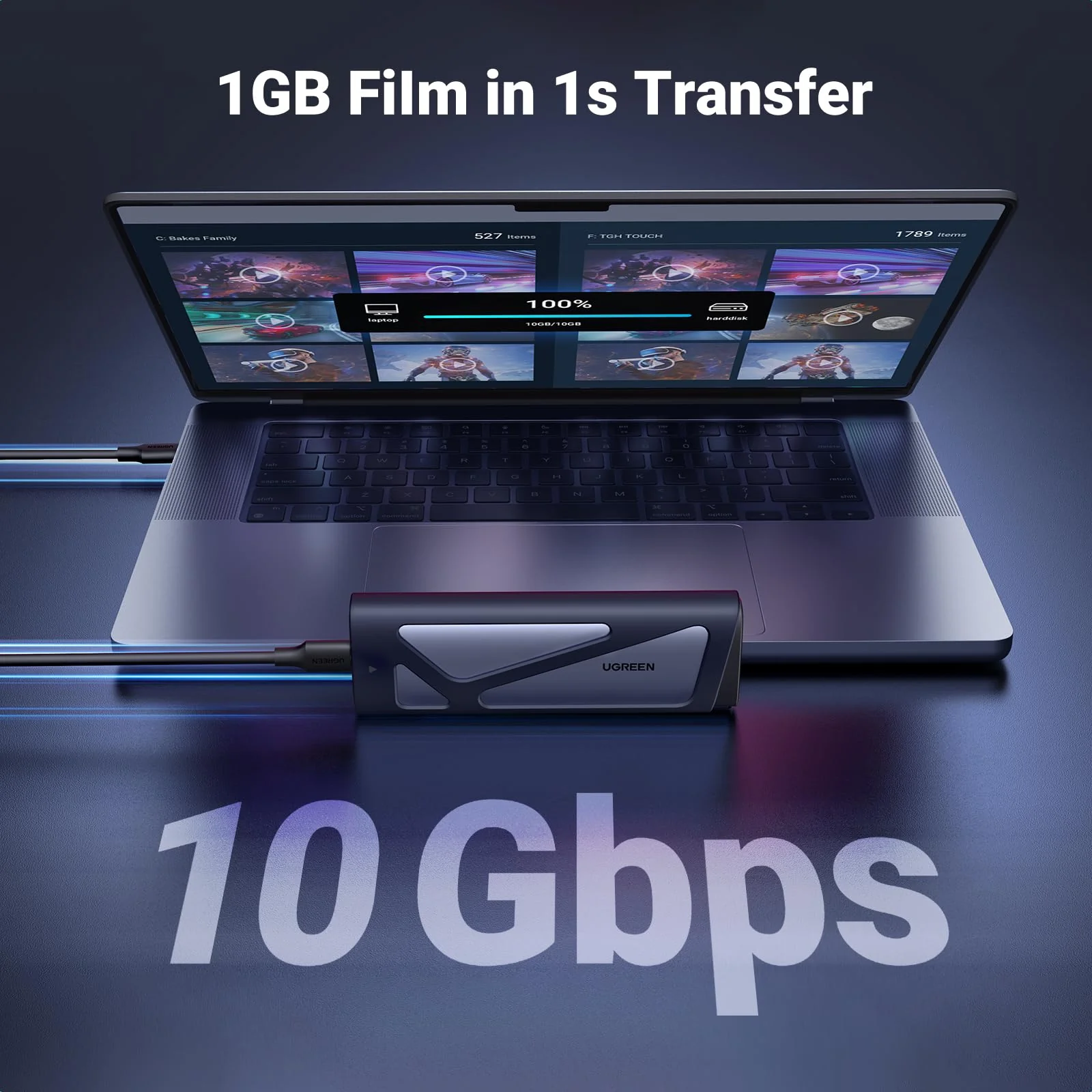
UGREEN M.2 NVMe SATA SSD Enclosure 10Gbps USB 3.2 Gen 2
$24.99
-70%
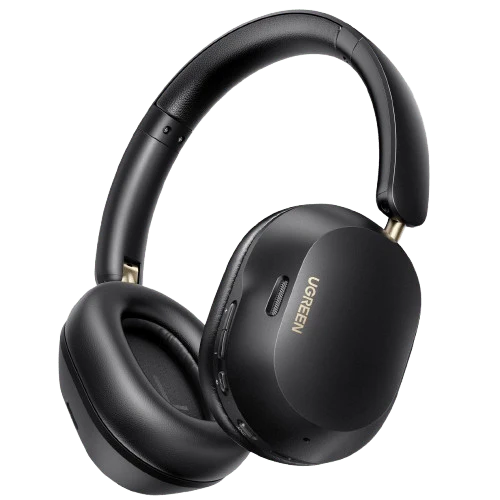
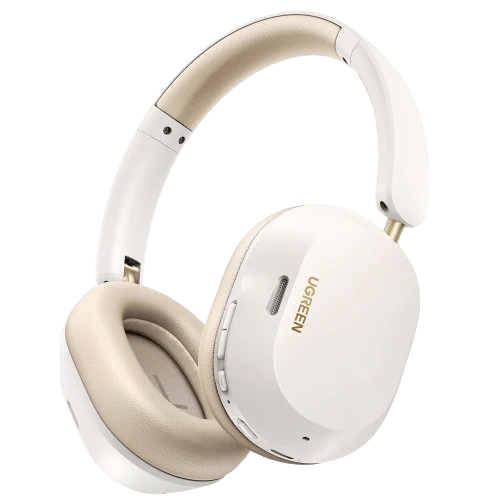
UGREEN HiTune MAX 5C Bluetooth Headphones (Over-Ear, Noise-Canceling, Hi-Res)
$45.79
$13.74
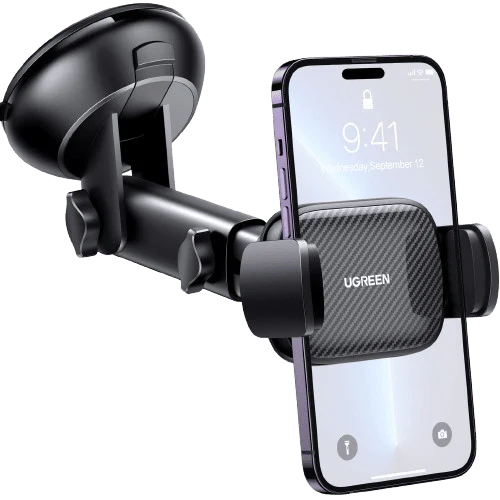
UGREEN Car Phone Holder (Telescopic Arm, 360° Rotation)